
Webhook subscriptions
View and edit your webhook subscriptions and events
Webhook subscriptions allow you to subscribe to notifications which help to efficiently track payments states, and enable you to automate communication internally or with your customers. They are push notifications sent as webhook message to URLs you define. We do not recommend using webhooks as a replacement for reconciliation purposes, here we refer you to our Reconciliation report.
How to get started
- Go to the left navigation bar on your dashboard select Webhook subscriptions
- Here you will see your company's current webhook subscriptions
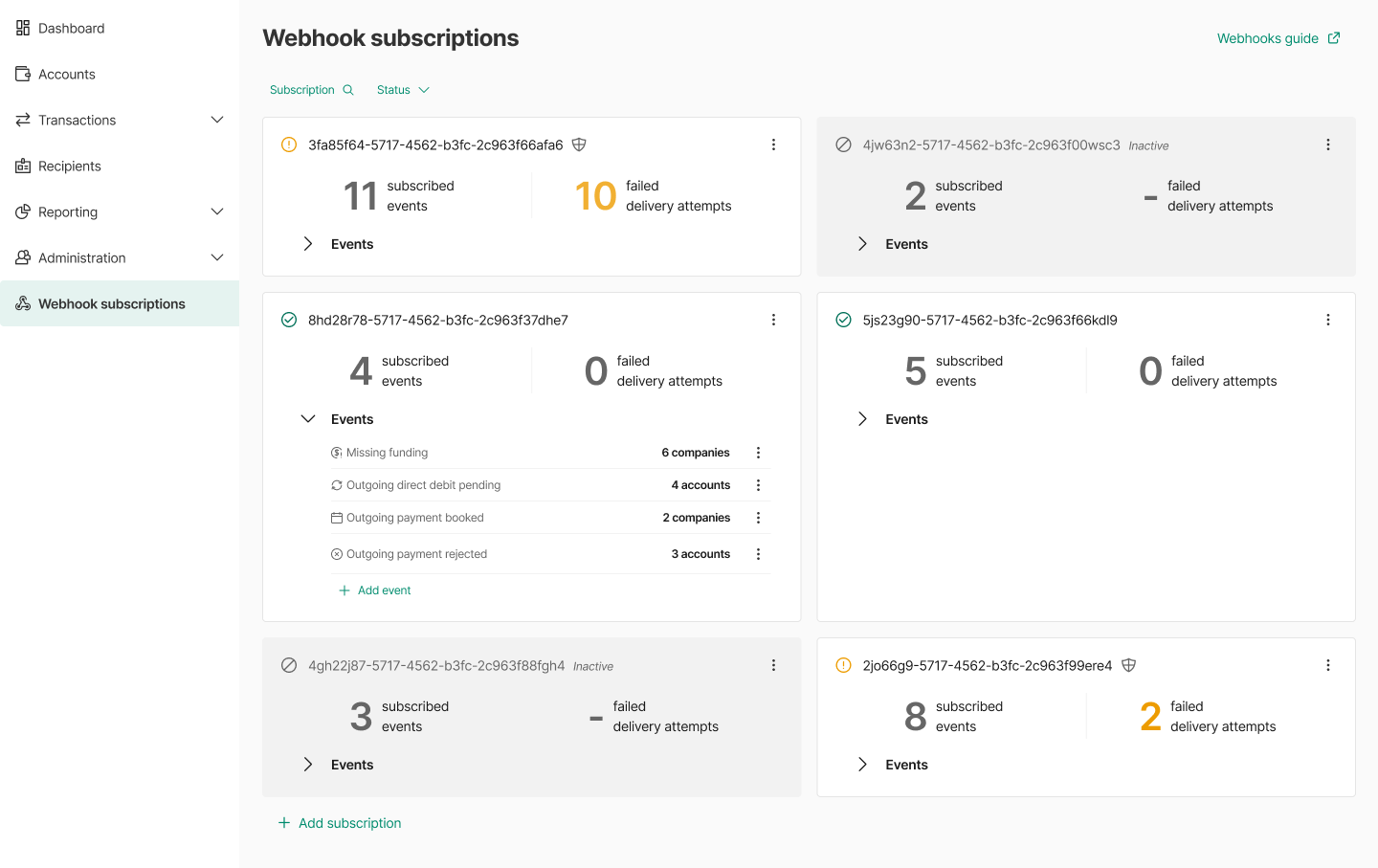
Subscriptions
Subscription status
There are three different states for a subscription
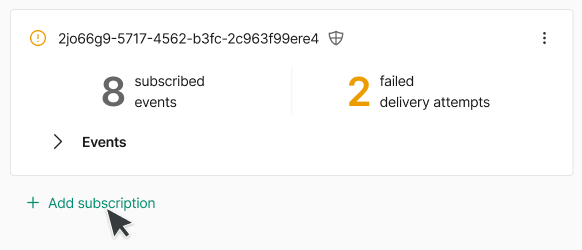
- Active - The status is indicated with a green checkmark icon in the top left corner. The failed delivery attempts is zero, indication that webhook notifications are being delivered successfully.
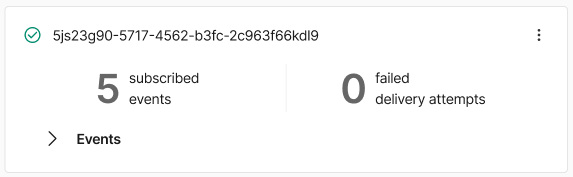
Active subscription
- Active, with failed delivery attempts - The status is indicated with a yellow warning icon in the top left corner. The failed delivery attempts is 1 or higher, also indicated with a large yellow number on the card. If you select View details of the subscription from the 3-dot menu in the top right corner of the card, you will see the time of the Last delivery attempt as well as the Status code of last delivery. For more information on the status codes, see the section Status codes below.
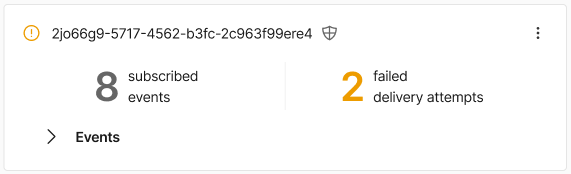
Active, with failed delivery attempts
- Inactive - The status is indicated with a grey slash icon, as well as the entire card background in a darkened grey color. Inactive subscriptions do not have any webhook notifications being sent. A subscription can be activated by selecting Activate from the 3-dot menu in the top right corner of the card.
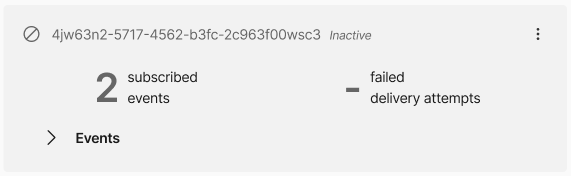
Inactive subscription
Creating a new subscription
- To add a new subscription, click on the + Add subscription button below the last subscription in the list.
- Enter the subscription information:
-
- Encryption key - a 32 character password to be used for the subscription. Make sure you save this password.
- Endpoint URL - the URL that the webhook notifications will be sent to. Make sure that you have configured this endpoint to receive webhooks. For more information on endpoint configuration and requirements please refer to the Setting up webhooks guide
- Max notifications per message - the number of notifications that are sent in each webhook. You can choose a number between 5 - 1,000. The default is 1,000 but can be lowered depending on your system’s capacity.
- Email - the email address that should be used to notify you if there is a problem delivering a webhook to your endpoint URL.
- Initial subscription status - you can choose whether the subscription becomes active as soon as it is created, or choose to activate it at a later time. If you have not yet configured your endpoint to receive webhook notifications, it is better to leave a subscription inactive and active it once your endpoint is ready.
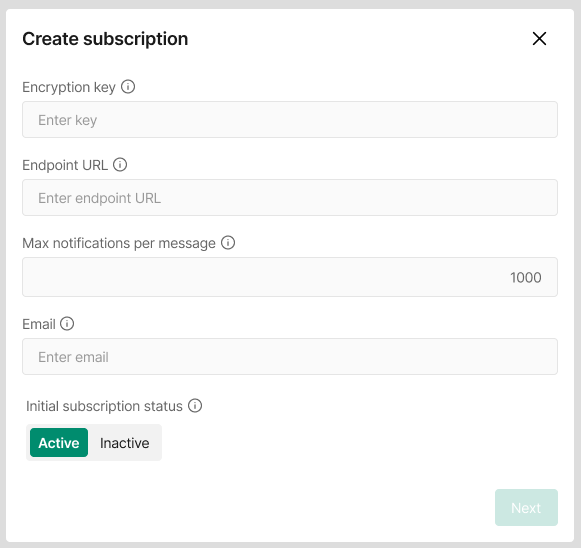
Create subscription form
Editing a subscription
To make changes to an existing subscription, click the 3-dot menu on the top right corner of the card. You will be able to make changes to the subscription information
Activating / Deactivating a subscription
To change the activation of an existing subscription, click the 3-dot menu on the top right corner of the card. Active subscriptions will have a Deactivate option, and inactive subscriptions will have an Activate option.
Removing a subscription
To delete an existing subscription, click the 3-dot menu on the top right corner of the card and then select Remove option. Note that deleting a subscription cannot be undone. If you delete a subscription by accident, you will have to create a new subscription to replace it.
Events
Subscription events
Each subscription card shows the number of events that have been subscribed to. You can view the list of events by expanding the Events accordion
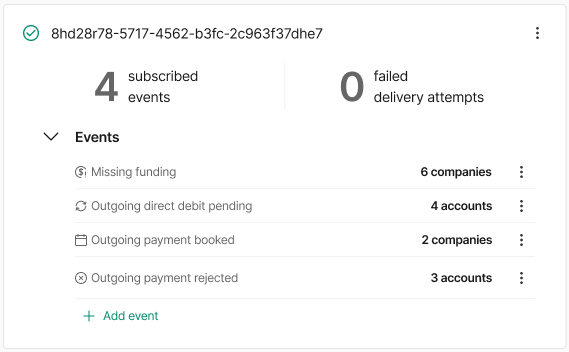
Subscription with events accordion expanded
Each event that has been added to the subscription is listed with the number and type of target that has been selected for the event.
Adding events to a subscription
To add an even to a subscription, you can either click the + Add event button below the last event in the list, or from the 3-dot menu in the top right corner of the subscription card.
Follow the steps:
- Select the event type you want to add to the subscription. Note that each event type can only be added once per subscription. Click the Next button to continue.
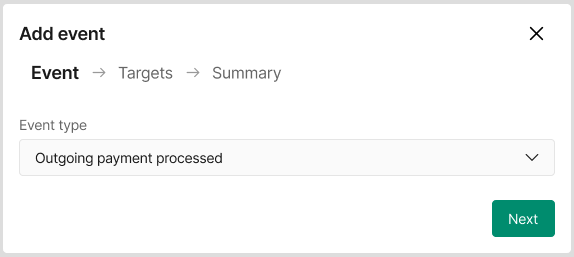
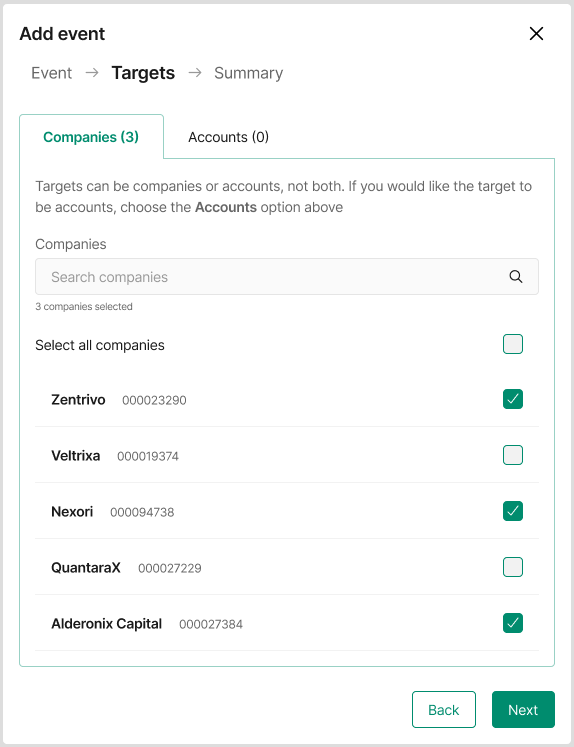
- Choose the target type: Companies or Accounts Note that an event can only contain one type of target, and some event types can only support Companies or All companies as options.
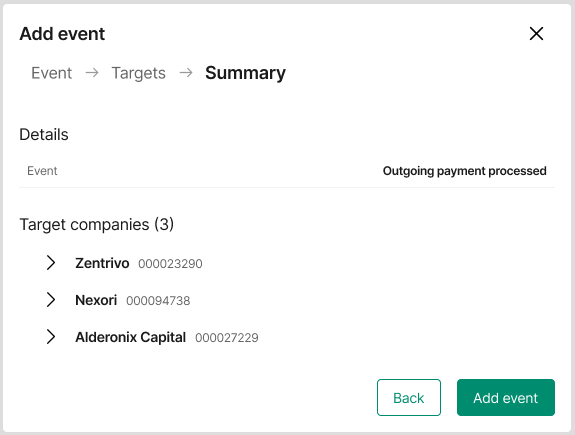
- Review the selections you made in the summary, and if all the information is correct, click on Add event
Editing an event
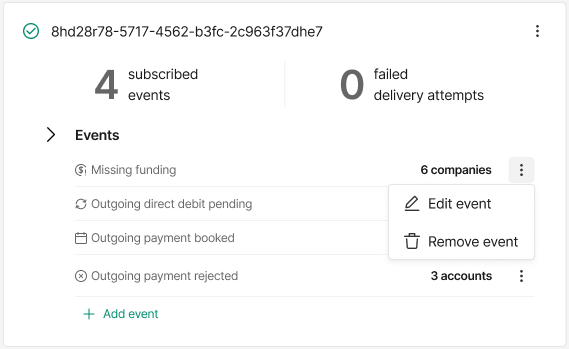
To edit an existing event, click on the 3-dot menu to the right of the event you want to edit.
Removing an event
To remove an event from a subscription, click on the 3-dot menu to the right of the event you want to remove, and select the Remove event option.
Troubleshooting
Restart delivery
If you have experienced failed delivery attempts, and have made the relevant changes to your endpoint to receive delivery again, instead of waiting for the next timed delivery attempt, there is an option to retry delivery. You can find the option Restart delivery in the 3-dot menu on the subscription card. Selecting this option will force a retry of the webhook delivery. If there are failed delivery attempts, it will also reset the counter to zero. Note: this option is only shown for active subscriptions. If your subscription has become inactive, you must first activate it.
Status codes for failed delivery attempts
If a webhook subscription has 1 or more failed delivery attempts, the most recent status code will be shown in the details drawer for the subscription. The status codes are:
| Status code | Description |
|---|---|
| 500 | Internal server error |
| 404 | Not found or subscription ID does not exist for the user |
| 401 | Unauthorized request |
| 400 | Bad request |